Instructions for installing Canvas LTI integration and some tips to avoid known issues.
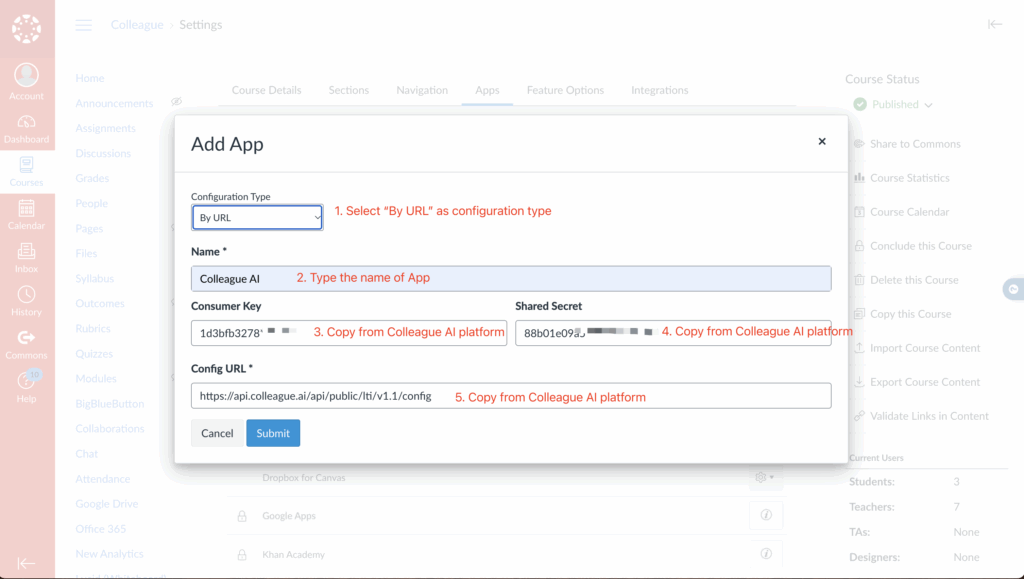
In the event that you do not have a hosted domain, or are unable to see the App Center, you can still install it via the External URL Method:
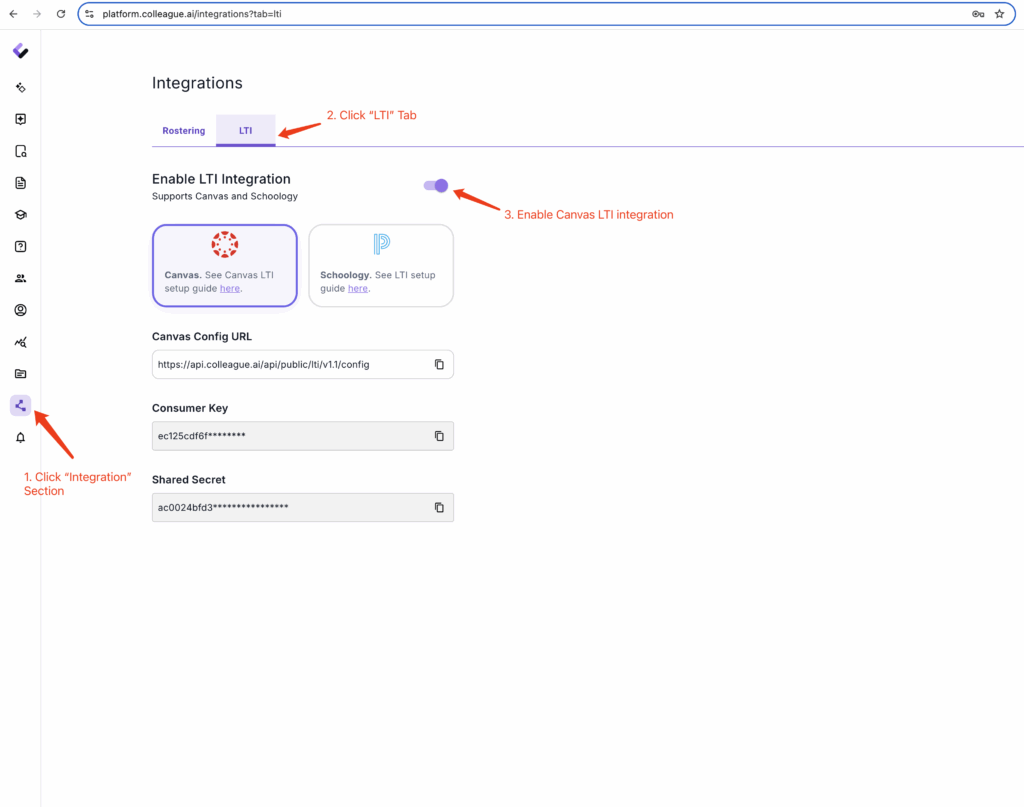
If you are OrgIT role of Colleague AI platform, you can find the integration page:
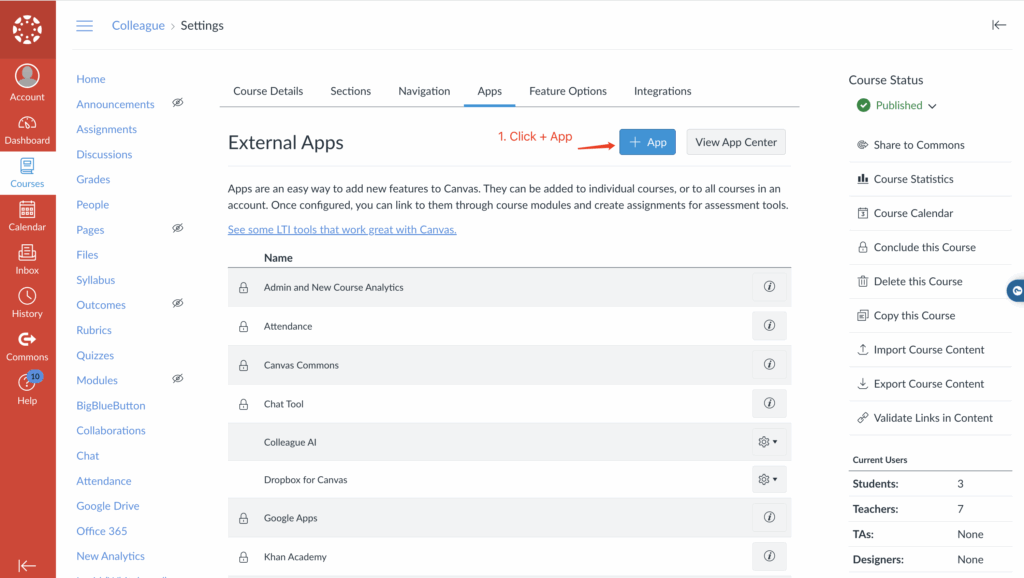
When you bring up the Canvas Apps Center, you will need to click the button at the top right + App.
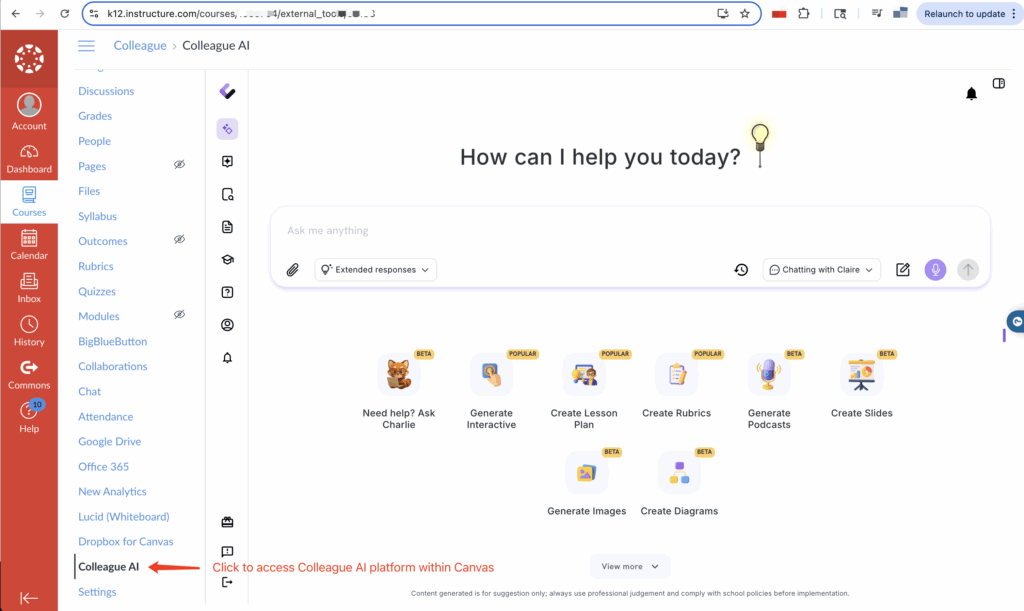
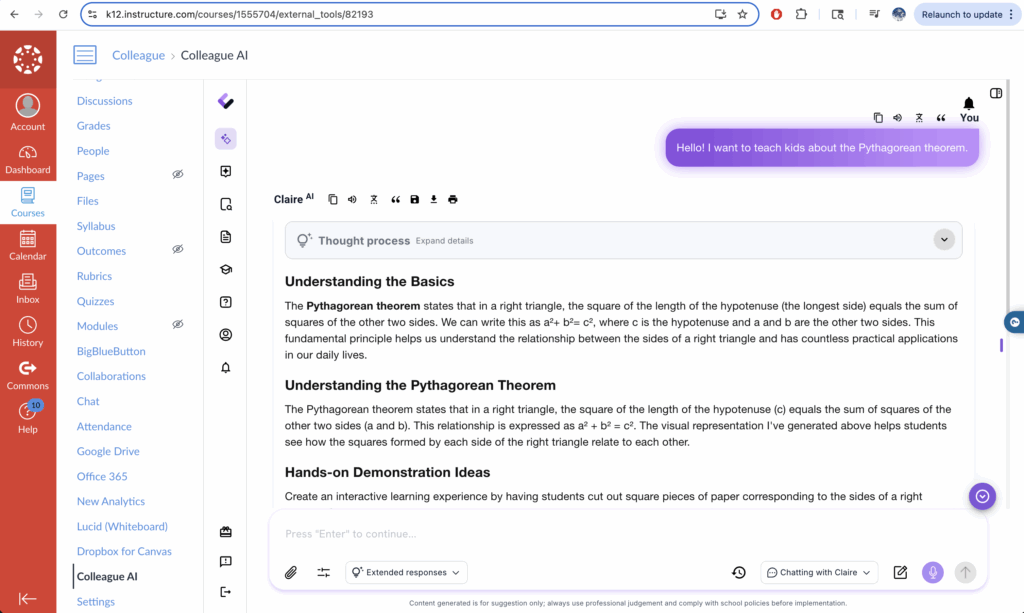
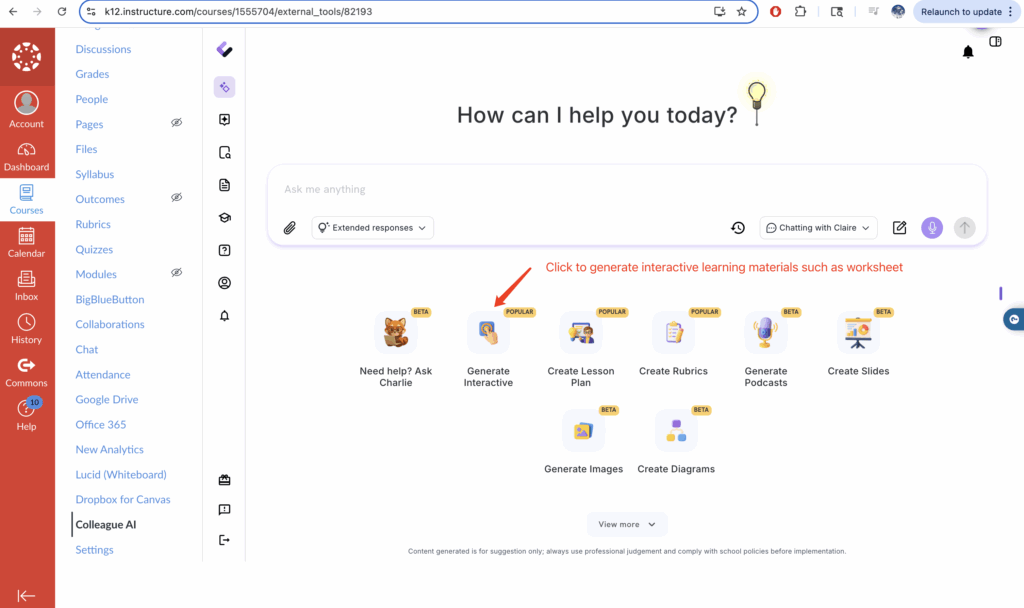
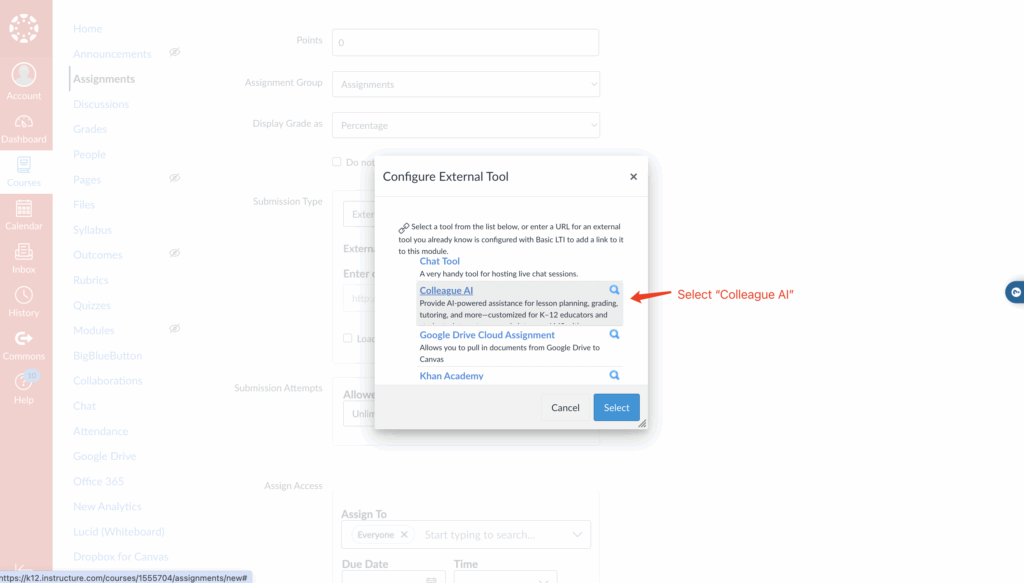
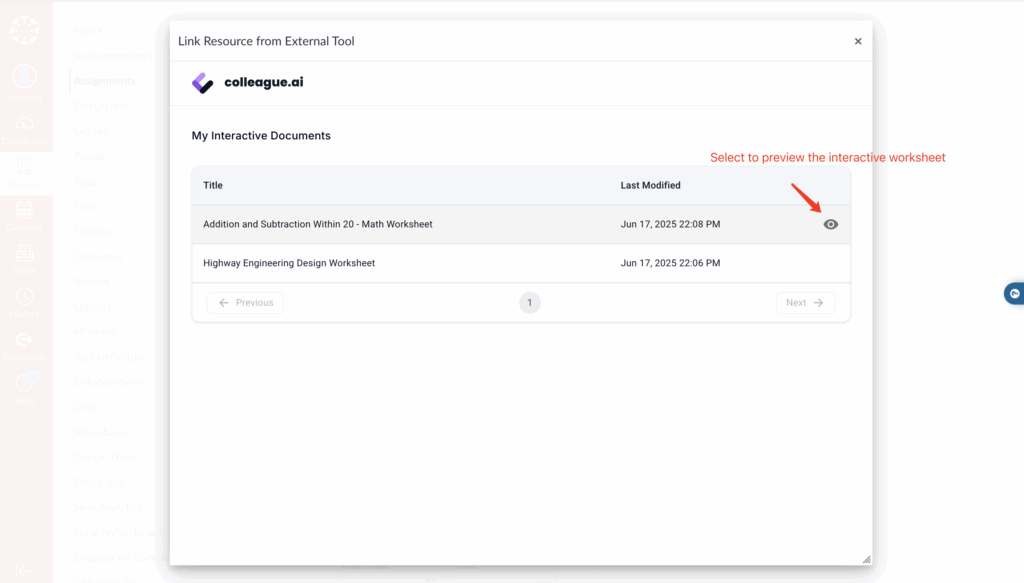
Users can access Colleague AI platform within Canvas after successful installation of the LTI integration.
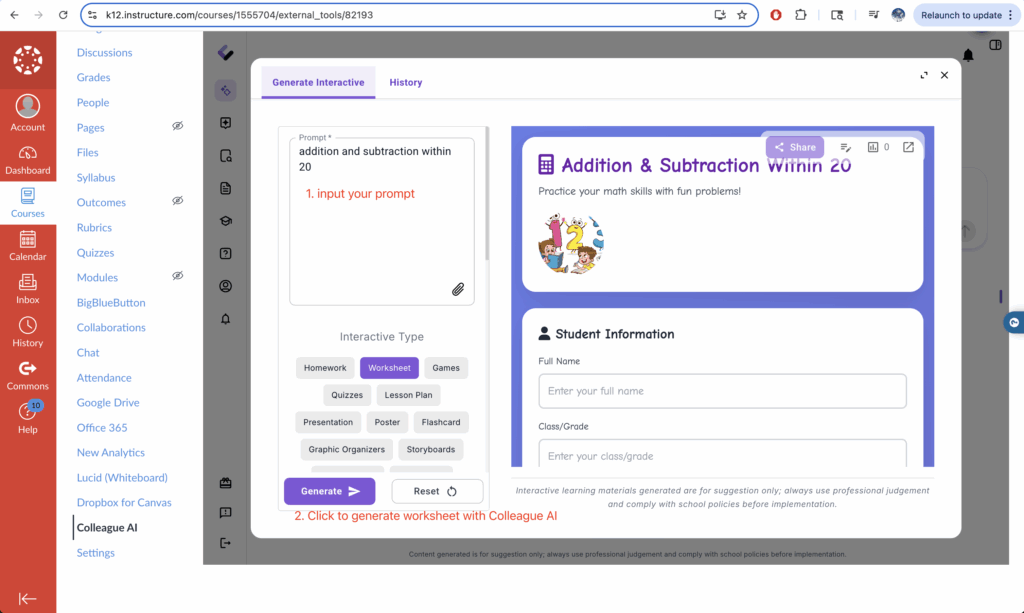
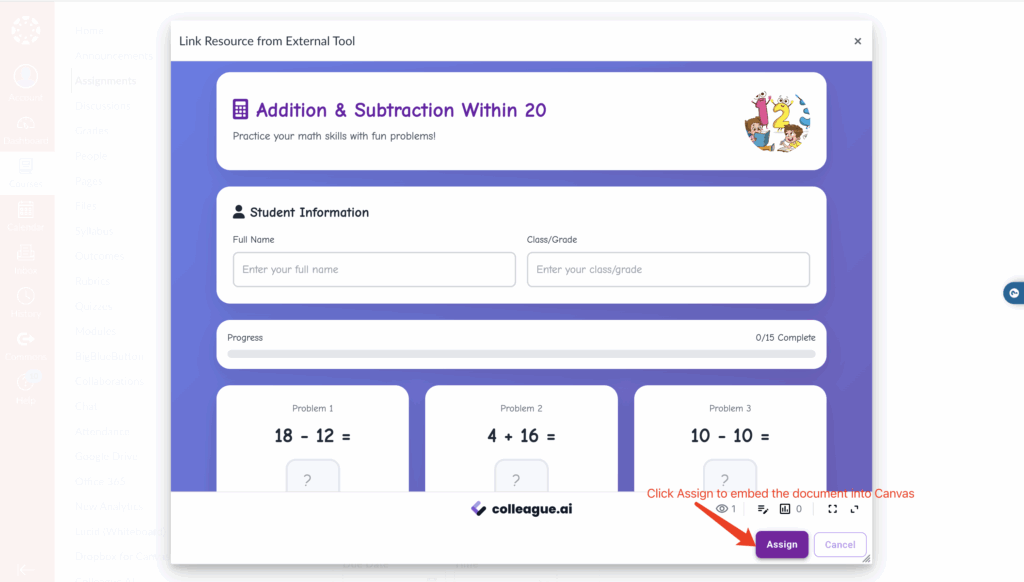
Users can easily generate highly engaging learning materials such worksheets with help of Colleague AI
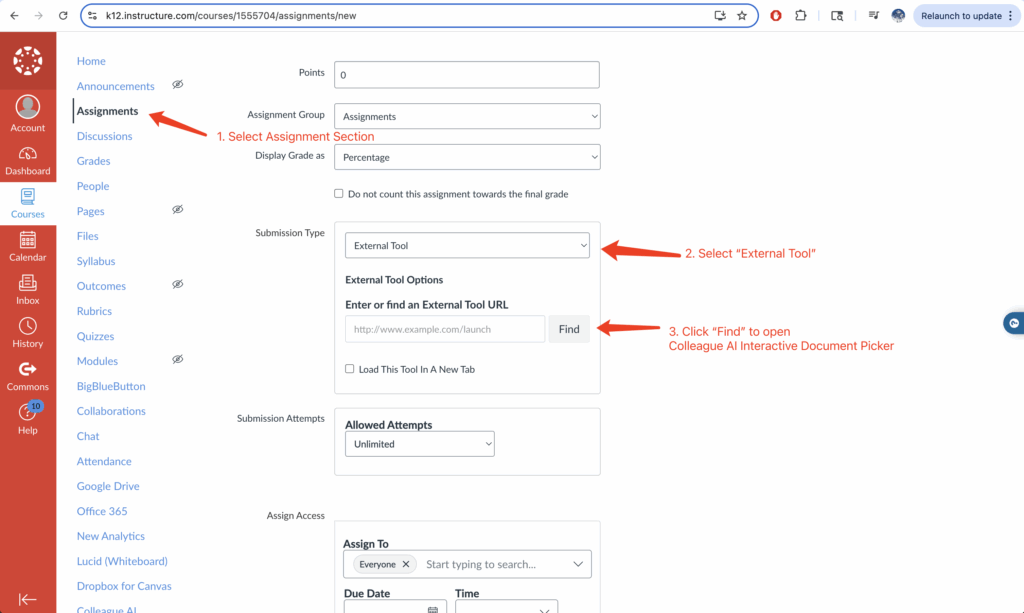
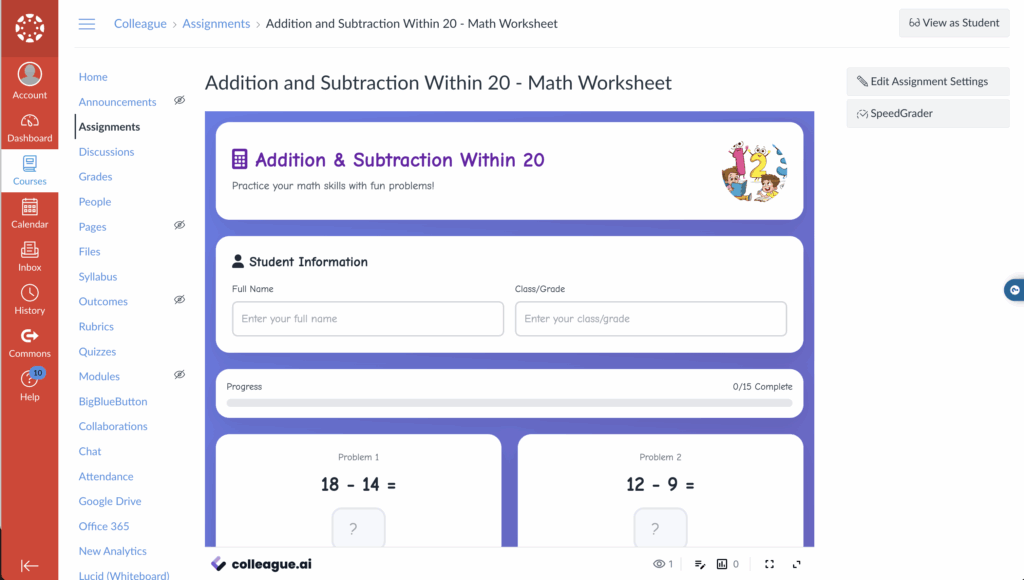
Users can create Canvas assignments by embedding interactive learning materials from Colleague AI.
How to set up one-click Canvas LMS integration for teachers
For Org IT. Add one Canvas Developer Key to Colleague AI, and every teacher in your organization can connect Canvas with one click, without creating an access token.
You need: a Canvas admin account and an Org IT account in Colleague AI.
Step 1. Copy the Redirect URI from Colleague AI
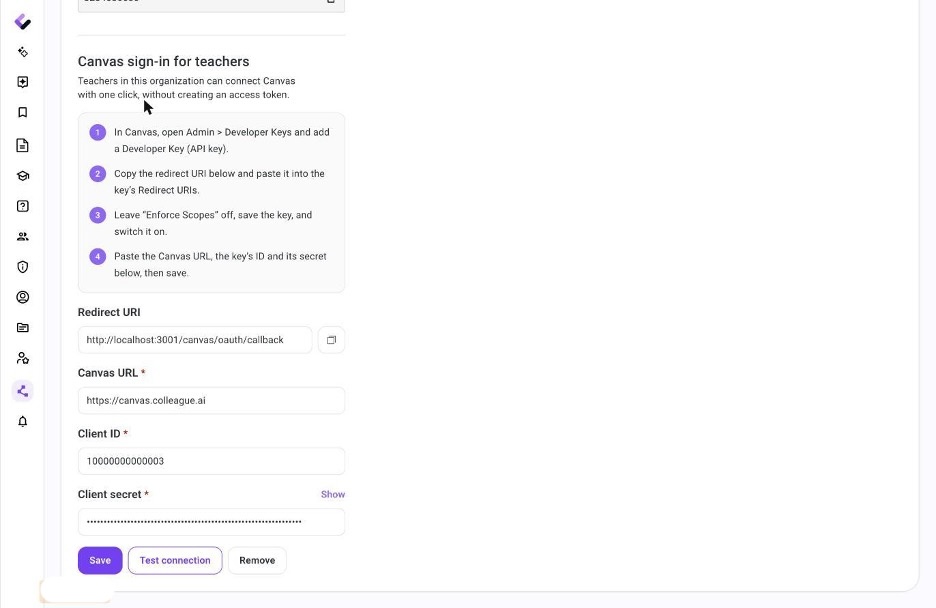
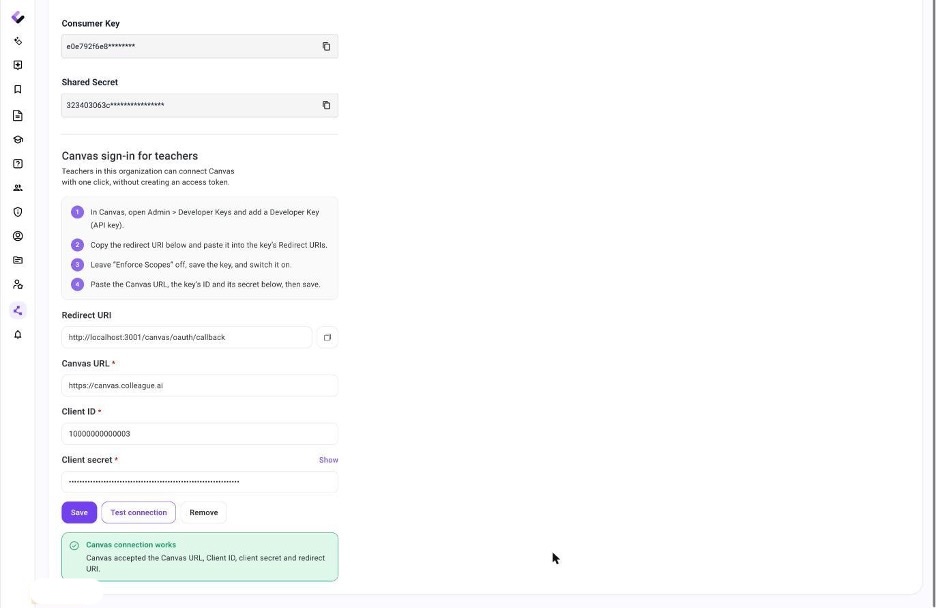
In Colleague AI, open Integrations > LTI, select Canvas, and scroll to “Canvas sign-in for teachers”. Click the copy button next to Redirect URI.
Step 2. Add a Developer Key in Canvas
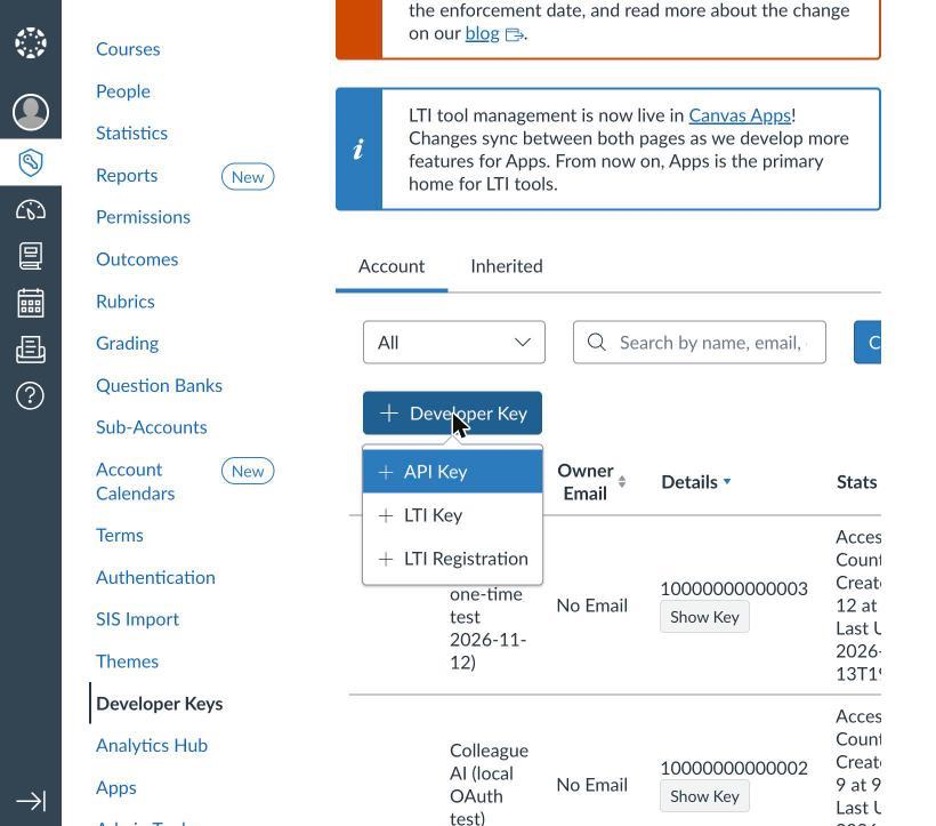
In Canvas, open Admin > Developer Keys. Click + Developer Key, then choose API Key.
Step 3. Fill in the key and save
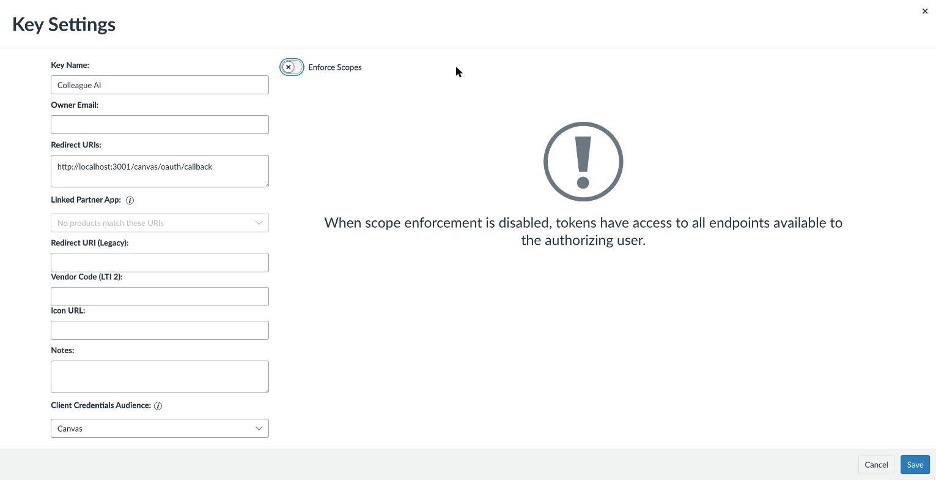
Give the key a name such as “Colleague AI”. Paste the Redirect URI from Step 1 into Redirect URIs. Switch Enforce Scopes off. Click Save.
Step 4. Switch the key on and copy its ID and secret
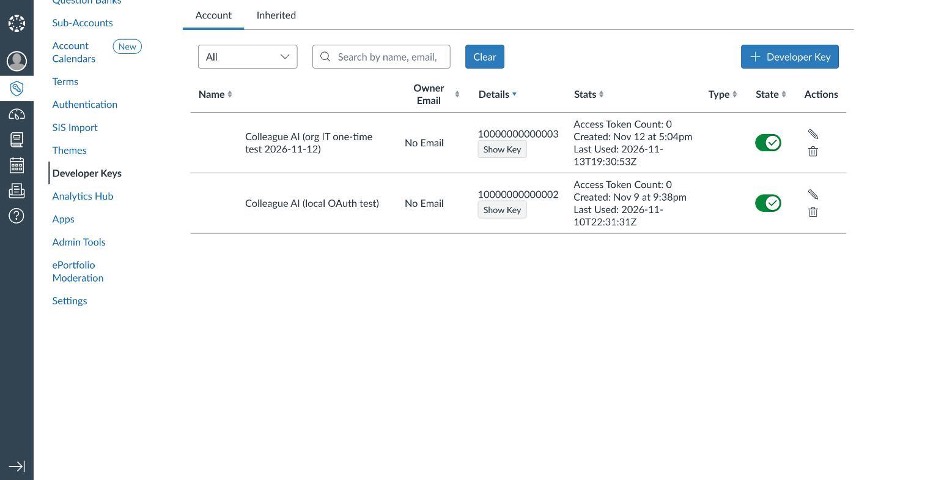
In the Developer Keys list, switch the State of the new key to ON. In the Details column, the number is the Client ID. Click Show Key under it to see the client secret. Copy both.
Step 5. Save the key in Colleague AI and test it
Back in Colleague AI (Integrations > LTI), enter your Canvas URL, the Client ID and the client secret, then click Save. Click Test connection. A green message means Canvas accepted the key and teachers can connect.
Step 6. Tell teachers they can connect
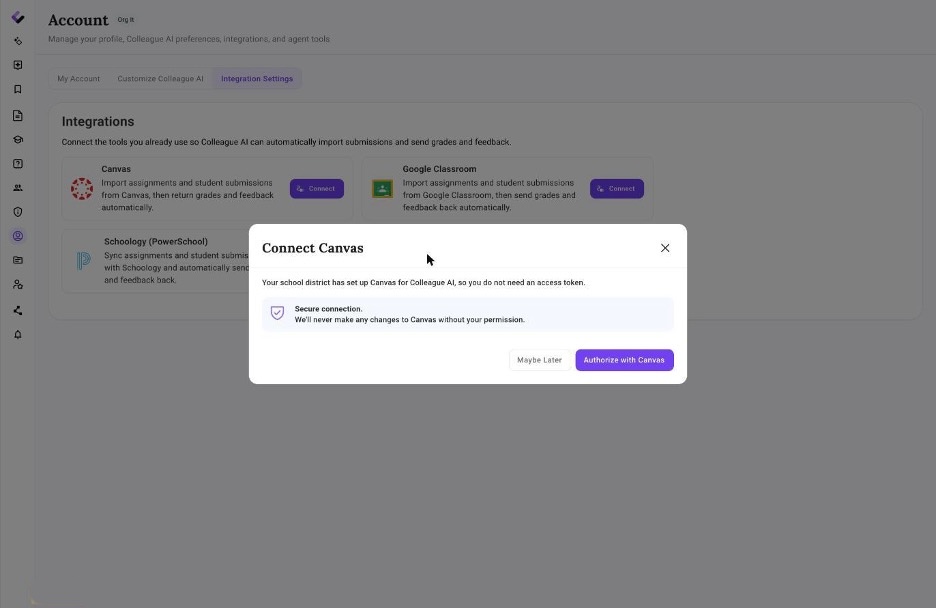
Each teacher opens Account > Integration Settings, clicks Connect on the Canvas card, then Authorize with Canvas. Canvas asks them to approve once, and they are connected. No access token is needed.
Good to know
Only Org IT can see and change the key.
If you remove or replace the key, teachers who connected with it are disconnected and need to connect again.
To fully remove access, also delete the Developer Key in Canvas.