
Build a seating chart
in minutes.
Use our seating chart generator to create an interactive seating chart based on your roster, your room setup, and the constraints you give it. With Colleague AI, you describe the chairs, the names, and the rules in one prompt, and it builds an interactive chart you can rearrange on the spot.
Try it now →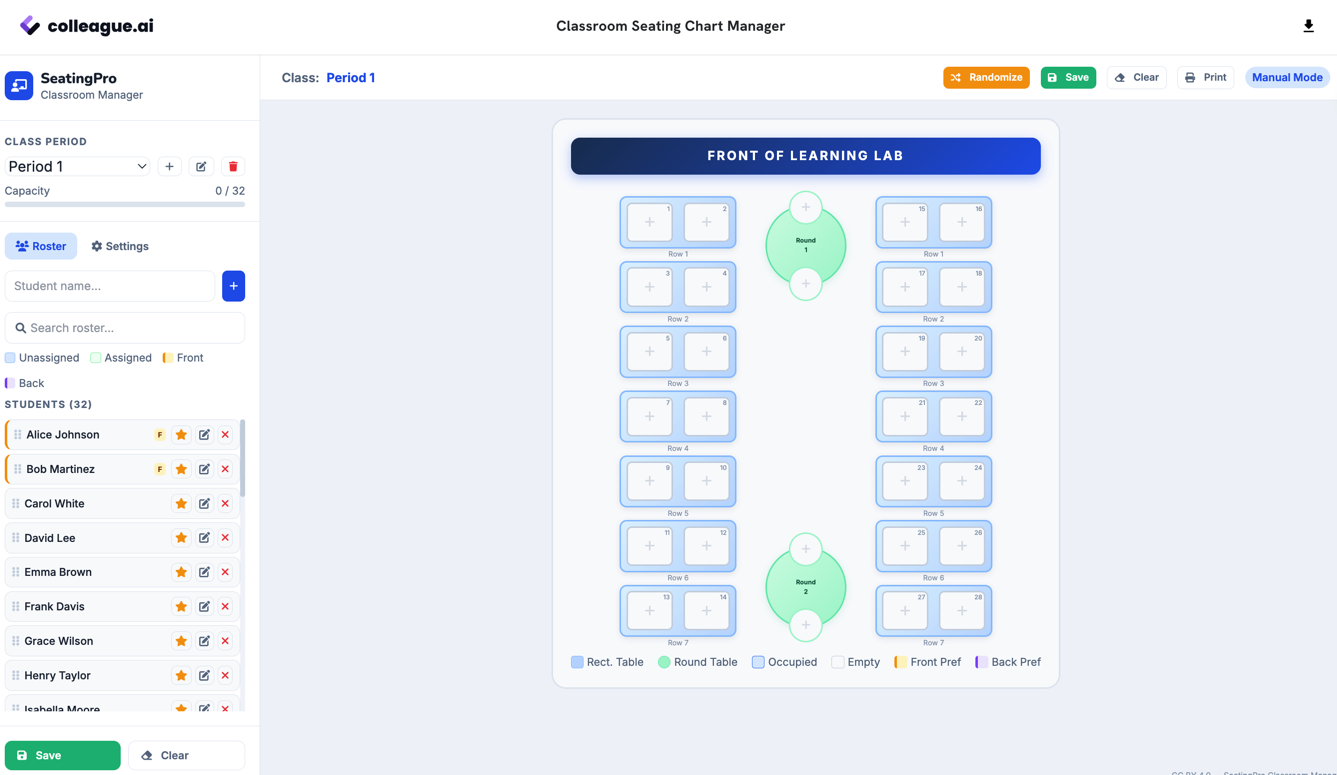
One roster. A dozen constraints to juggle.
It's never just names in a grid. There's who needs to sit up front, who can't sit next to whom, how many students fit at each table, and a chart you'll probably redo the second the unit changes.
Sticky notes and spreadsheets don't hold all of that at once. Colleague AI takes every constraint in as part of the same prompt and builds a chart that respects all of them together.
Describe the room. Get a working chart back.
You're not dragging names one at a time into a grid. You tell Colleague AI what you need, and it builds the whole layout — then lets you adjust it by hand.
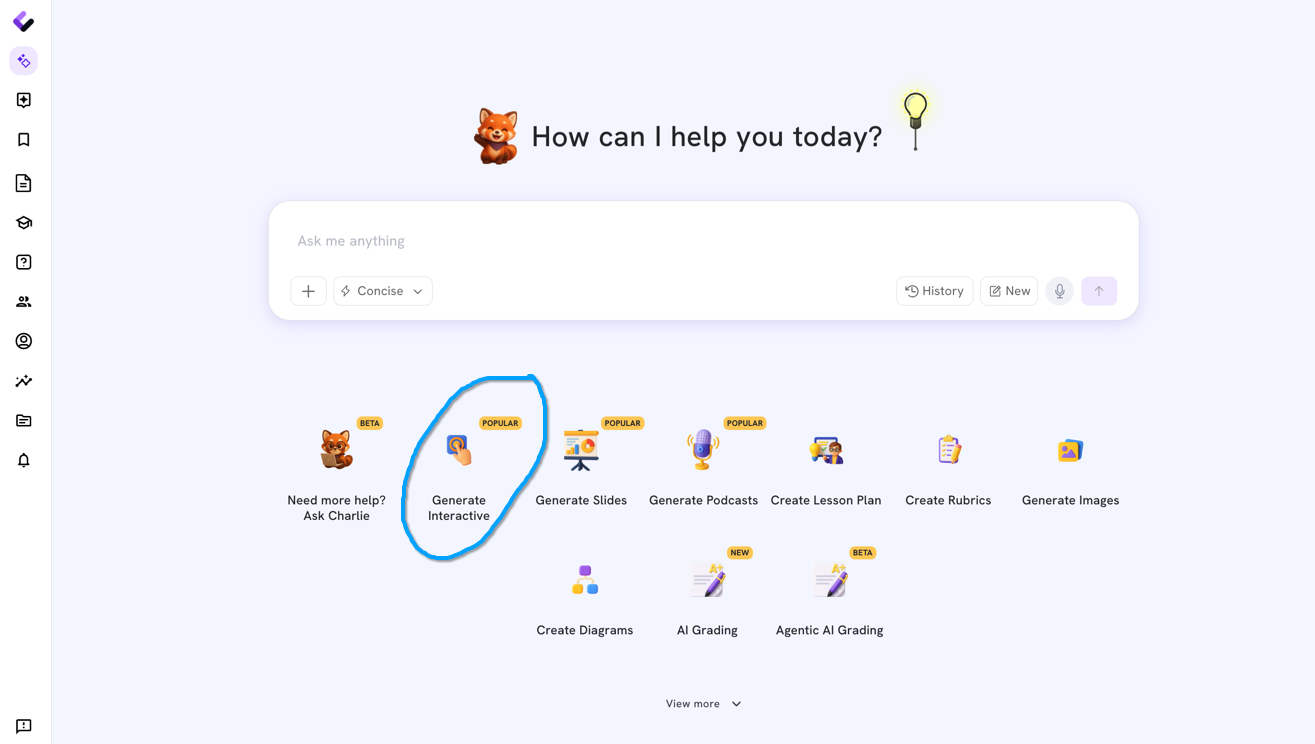
Choose Create Interactive.
Open Colleague AI and select Create Interactive to start building a seating chart your students can actually see and use, not just a static list.
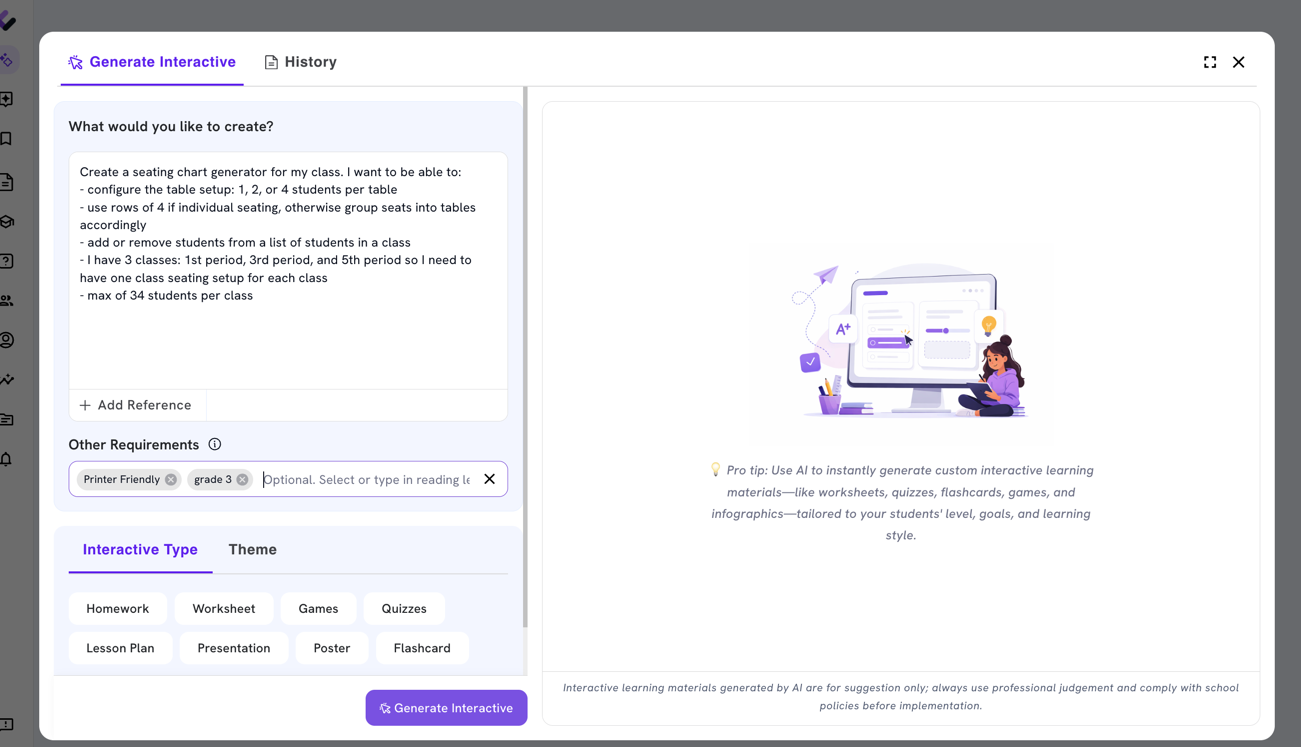
Describe the chart you need.
Tell the AI agent how many chairs, your students' names, how many tables or groups you're working with, and any constraints — who needs to sit near the front, who can't sit together, or how you want groups balanced. It builds the layout from that one prompt.
Check the output and adjust as needed.
Review the chart Colleague AI generates, then instruct or prompt any adjustments. Change the color, add a theme, whatever you can imagine!
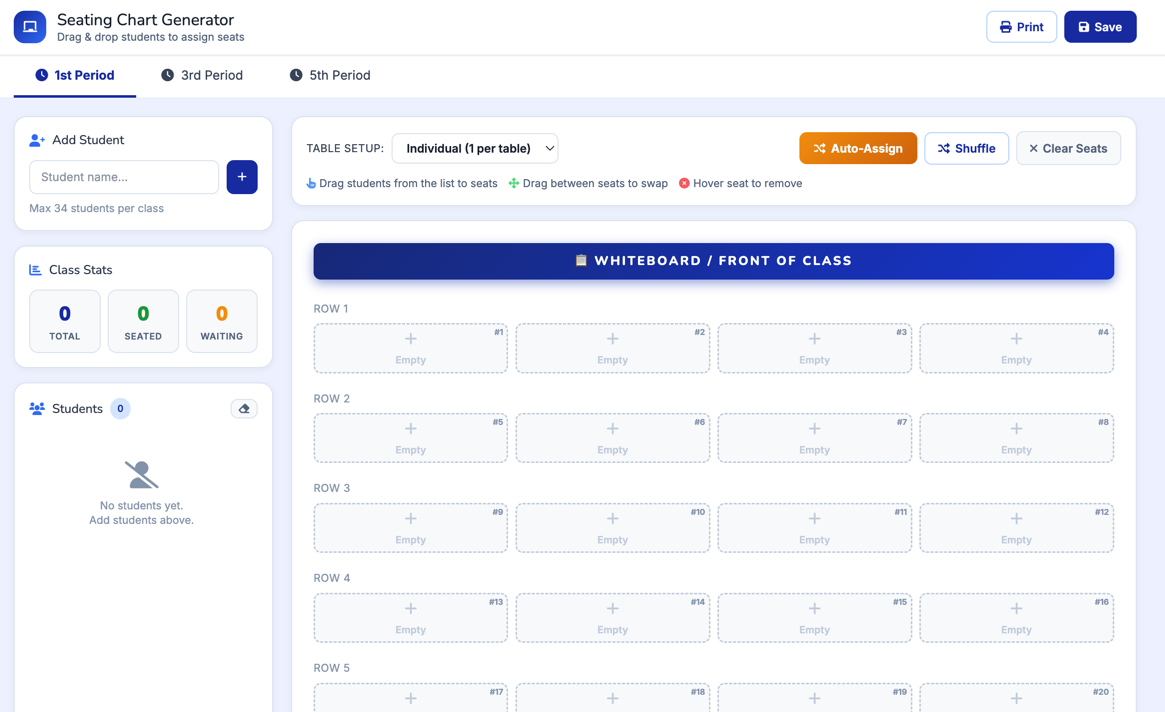
Assign your students!
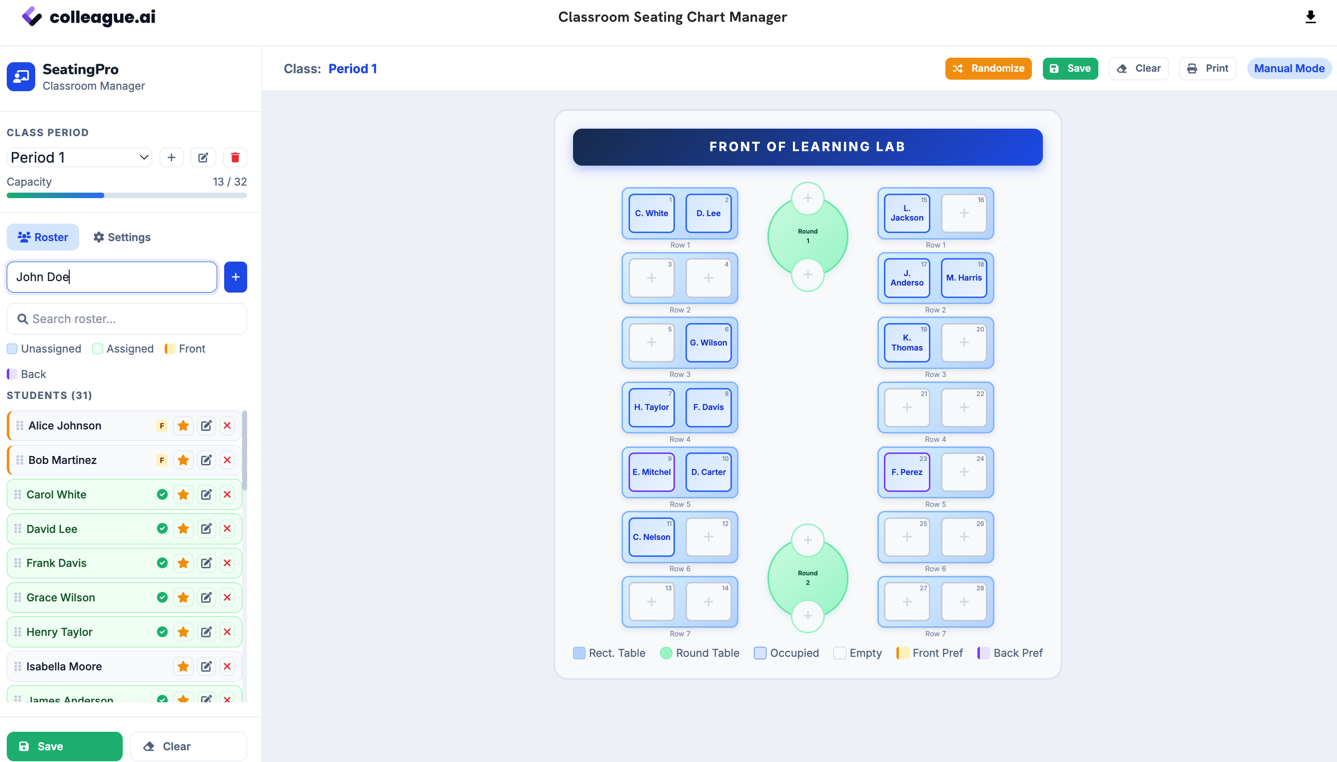
Use the drag and drop system to assign students a seat, play around with configurations, and find what works for any given day or activity.
Built around your constraints, not just your roster.
A seating chart is only useful if it respects the reasons behind it. Colleague AI keeps those reasons attached to the chart, not left behind in a separate note.
The rules you set stay in place.
Front-row seating, students who need to be kept apart, and group balance are part of how the chart gets built, not an afterthought you fix by hand.
Drag, drop, and adjust on the spot.
Move a student, resize a table, or shuffle a group and see the change immediately — the chart responds like a real layout, not a static printout.
New unit, new groups, same chart in minutes.
When your roster changes or you want a fresh arrangement, ask again with new constraints and get an updated chart instead of starting over from scratch.
A seating chart that fits your room. Minutes, not a headache.
Describe your chairs, your students, and your constraints, and Colleague AI builds an interactive chart you can check, adjust, and use the same day.
Try it now →